Roland Weigelt
Born to Code
-
VS.Net and the FontSize Parameter
Roy wrote about the /fs (FontSize) command line parameter of devenv.exe and using it for presentations: cool feature I didn't know about. Maybe I should have called "devenv.exe /?" before, but it just didn't came to my mind at all, not expecting any interesting parameters. Anyway, first thing I did was to try a large number (/fs 20), but I also tried "/fs 7" which is smaller than the default (/fs 8).
Font size 7 is kind of interesting. While I use 1280x1024 on a 19" screen both at home and at work, and feeling ok with it (more would be nice, but it's ok), I'm sometimes forced to work with 1024x768 on another computer connected to the same 19" monitor. This is where every pixel in VS.Net counts, especially because you cannot make every window fly-in/out without going mad after some time.
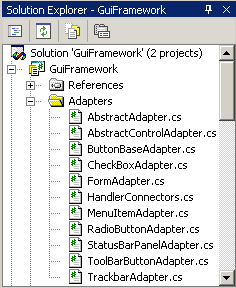
With "/fs 7" dialogs and helper windows are a bit smaller, while the text editor font remains unchanged. The following screenshots show the solution explorer:
Default:
With /fs 7:
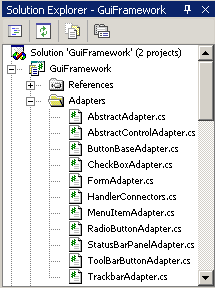
As you can see, you can save a few pixels - with 1280x1024 not really a reason to switch. But if you're in the strange situation of viewing low resolution on a big screen, "/fs 7" is worth giving a try.
-
Nice Buttons
As I wrote in my first post, I'm currently developing some kind of "DJ software" in my spare time. The first versions grew by adding feature by feature over several years, the new version is a complete rewrite from bottom up. This whole project will take a lot of time, with lots of coding to be done before there's actually something usable.
While I'm implementing the framework, I also work on "visible" stuff to keep my motivation up (this is a private project, and I don't expect making [much] money from it). Something "visible" is e.g. the audio player control. I don't use the Windows Media Player control directly, instead I'm using the (non-GUI) WMP object hidden behind an abstraction layer, which is accessed by a user control showing the GUI..
A GUI for a player has to be cool (but no "unusable 1337 skinz", please), including nice looking buttons for "start/stop/pause/etc.". So here's what my buttons look like:

Nice, huh? So how much effort went into those buttons? Very little. If you're not looking for a "100% perfect" solution, you can get pretty good results just playing around with the properties "BackColor", "BackgroundImage" and "Image" of a WinForms button.
-
Step 1: Decide how high the button will be;
for this example, let's choose a height of 32
pixels. The width doesn't play a role as the image
can be repeated horizontally without looking bad.
Fire up your favorite paint program, create a 32x32
image and perform a vertical gradient fill from
white (#FFFFFF) to gray (#C0C0C0):

-
Step 2: Let's try it in VS.Net:
- Put a button on a form, 32 pixels high.
- Set the "BackColor" to white
- Set the "BackgroundImage" property

-
Step 3: Design the button image:

and save it as a GIF file with transparent background:
-
Step 4: In VS.Net, clear the button text and
set the "Image" property:

- That's it!
Remarks:
- Leave an empty pixel column/row at the right/bottom border of your button image, otherwise the image will not appear centered on the button.
- Of the background image, the outer 2 pixel rows/columns will not be visible, they are hidden behind the border of the button.
-
Step 1: Decide how high the button will be;
for this example, let's choose a height of 32
pixels. The width doesn't play a role as the image
can be repeated horizontally without looking bad.
Fire up your favorite paint program, create a 32x32
image and perform a vertical gradient fill from
white (#FFFFFF) to gray (#C0C0C0):
-
Wouldn't it be cool...?
This is what XML comments look like on my computer today:

Wouldn't it be cool if someday (in VS.Net 200x?) we could have something like this:
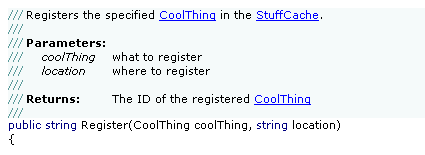
It's kind of frustrating to see computers rendering 3D worlds with 100s of frames/sec, but source code editors advancing only in very small steps...
-
Better Keyboard Support for #region ... #endregion
Of all the elements that can be collapsed in the VS.Net editor (namespaces, classes, methods, comments, ...), only regions are of actual importance for my everyday work. Here are three macros that are quite helpful for expanding/collapsing regions using the keyboard:
Macro Purpose Keys (example) ExpandAllRegions expands all regions in the current document Ctrl-Shift-'+' CollapseAllRegions collapses all regions in the current document Ctrl-Shift-'-' ToggleParentRegion expands/collapses the region the cursor is currently in Ctrl-'+' and Ctrl-'-' Installation:
- Open the Macros IDE (Tools - Macros - Macros IDE)
- Create a new module, replace the code in the created file with the posted source code, save file
- Assign keys in VS.Net (Tools - Options - Keyboard).
Tip: type "Region" in the input field under "show commands containing" to limit the list of shown commands (don't laugh, it's always amazing how many people don't know about this rather obvious feature...)
Known Issues
- The code runs fine in VS.Net 2003; in VS.Net 2002 I had strange problems with "Selection.FindText" not working reliably.
- ToggleParentRegion is "good enough", but not perfect; e.g. when the cursor is at the end of a line containing a collapsed region, it won't expand the region, but move the cursor to the start of the line (where a second invocation will work fine).
- (Update 14.08.2003): The macro ExpandAllRegions does not work in VB.Net (see comments below). The macro ToggleParentRegion didn't work correctly, either, but could be fixed (see "Updated" comment in code).
Source Code
Imports EnvDTE
Imports System.Diagnostics
' Macros for improving keyboard support for "#region ... #endregion"
Public Module RegionTools
    ' Toggles the current region surrounding the cursor
    Sub ToggleParentRegion()
        Dim objSelection As TextSelection
        objSelection = DTE.ActiveDocument.Selection
        Dim objPosition As EnvDTE.TextPoint
        objPosition = objSelection.AnchorPoint
        objSelection.SelectLine()
        If (InStr(objSelection.Text.ToLower(), "#region") <> 0) Then  ' Updated 14.08.2003
            objSelection.MoveToPoint(objPosition)
            DTE.ExecuteCommand("Edit.ToggleOutliningExpansion")
            DTE.ActiveDocument.Selection.StartOfLine(vsStartOfLineOptions.vsStartOfLineOptionsFirstColumn)
        ElseIf (objSelection.FindText("#region", vsFindOptions.vsFindOptionsBackwards)) Then
            DTE.ActiveDocument.Selection.StartOfLine(vsStartOfLineOptions.vsStartOfLineOptionsFirstColumn)
            DTE.ExecuteCommand("Edit.ToggleOutliningExpansion")
            DTE.ActiveDocument.Selection.StartOfLine(vsStartOfLineOptions.vsStartOfLineOptionsFirstColumn)
        Else
            objSelection.MoveToPoint(objPosition)
        End If
    End Sub

    ' Expands all regions in the current document
    Sub ExpandAllRegions()
        DTE.ExecuteCommand("Edit.StopOutlining")
        DTE.ExecuteCommand("Edit.StartAutomaticOutlining")
    End Sub

    ' Collapses all regions in the current document
    Sub CollapseAllRegions()
        ExpandAllRegions()
        Dim objSelection As TextSelection
        objSelection = DTE.ActiveDocument.Selection
        objSelection.StartOfDocument()
        While (objSelection.FindText("#region"))
            objSelection.StartOfLine(vsStartOfLineOptions.vsStartOfLineOptionsFirstColumn)
            DTE.ExecuteCommand("Edit.ToggleOutliningExpansion")
            objSelection.StartOfDocument()
        End While
        DTE.ActiveDocument.Selection.StartOfDocument()
    End Sub
End Module -
Personal VS.Net Editor Color/Font Settings
Roy writes "I was fiddling with the color settings for visual studio, and was trying to get a less eye-straining environment for coding in". What he came up with is definitely a matter of personal taste ;-)
Speaking of personal taste, here's a screenshot of my settings:
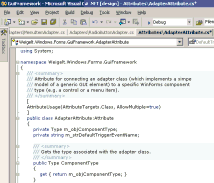
Most important for me (and my eyes) is the use of a proportional-width font. Verdana 8pt is the font I use for virtually every editor I use. Unlike e.g. Arial, you can call it a "developer's font", because you can distinguish the small "L" and the large "i".
Switching to a proportional font wasn't easy for me at first, because I had to break with old habits; most of them (e.g. aligning end-of-line comments running over several lines) were a waste of time, anyway.
-
First entry / Fun with Media Player SDK
This entry may surprise some people I know that are reading the main feed every day - I didn't tell them I would start a blog... For everybody else some quick info about me: I'm 34 years old, started programming in 1983 on a TRS-80 Color Computer and got my first PC in 1989. I live in Bonn, Germany, working as a software developer for a local company. In my spare time I enjoy writing tools and macros, and - in many iterations over the last years, using different languages/technologies - a kind of DJ'ing software for sports events like basketball games. Currently I'm doing a complete rewrite in C#, using the windows media player 9 SDK.
So far, my experiences using the media player object, its properties, methods and events have been very good. But yesterday I ran into something rather strange.
Say you open a sound file like this:
objPlayer.URL=@"D:\MySound.wav"; and now you want to know the duration
double dDuration=objPlayer.currentMedia.duration; but dDuration is 0. If you play the sound file, currentMedia.duration contains the correct value. But you want the duration before starting playback. Ok, next try:
IWMPMedia objMedia = objPlayer.newMedia(filename);<br>objPlayer.currentMedia=objMedia<br>double dDuration=objPlayer.currentMedia.duration;<br> Again, dDuration is 0. Now try this:
IWMPMedia objMedia = objPlayer.newMedia(filename);<br>double dDummy=objMedia.duration;<br>objPlayer.currentMedia=objMedia<br>double dDuration=objPlayer.currentMedia.duration;<br> And... dDuration contains the correct value!
Took me some time to figure out that one...