[tool] TimeSnapper - Never lose work again
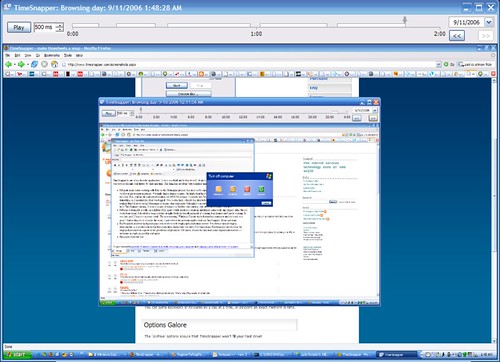 TimeSnapper
is one of my favorite applications. It does one thing and it
does it well - it takes a screenshot every few seconds, then
lets you browse through your history by date and time. Most
people focus on this as a way to simplify filling in time
sheets, but I've come to rely on this program as a safety
net. This thing has saved my butt countless times:
TimeSnapper
is one of my favorite applications. It does one thing and it
does it well - it takes a screenshot every few seconds, then
lets you browse through your history by date and time. Most
people focus on this as a way to simplify filling in time
sheets, but I've come to rely on this program as a safety
net. This thing has saved my butt countless times:
-
I'd spent
many long hours
working with
Roiy
on the
Monoppix project,
but since we're separated by about 7500 miles I doubted
we'd ever get to meet in person. We finally had a chance -
he had a brief layover on a flight through Los Angeles, so
we planned to meet for sushi. Roiy sent me his contact
information via MSN Messenger. I normally use Skype chat,
which I have set up to log chat transcripts, so I assumed
my chat was logged. Two weeks later, when it was time to
leave for the two hour drive to LA, I realized that I'd
never set up Messenger to log my chat transcripts. I
thought I was screwed, but then I remembered that I always
have TimeSnapper running. It took a couple of minutes to
find the chat window with all the information I needed.
-
I'd been working for a while on a difficult SQL query
which needed to clean up and import some really ugly
legacy data. Since I work from home, I decided to bang on
it late one night (both the benefit and peril of working
from home) and I got it working. It was late, and I forgot
to save my work. The next morning, Windows Update had
rebooted my computer and the work was gone.1
Rather than try to recreate the work, I just viewed the
previous night's work on TimeSnapper. Done and done.
-
I'm frequently involved in deploying my own work to both
staging and production servers. I've always viewed staging
deployments as a practice run for for the production
deployment, but lately I've begun using TimeSnapper movies
from the staging deployment as a guide to the production
deployment. Of course, it's not the only tool in my
deployment toolbox - I automate as much as possible,
pre-stage whatever I can, and write up deployment plans.
However, it's hard to think of more functional deployment
documentation than a video showing each step of a
successful deployment.
-
We recently helped a client to migrate several older sites
to a new server. I handled everything via Remote Desktop.
The move went well, the client signed off, and the old
server was decomissioned. A while later, the client had a
question about the configuration of the old server (which
they'd since decomissioned and re-formatted). I was able
to answer their question by scanning through screenshots
of my computer while I'd been working on the remote
server.
-
Often, I'll get so caught up in leaving a comment on
someone else's blog that I end up putting more effort into
it than a post on my own blog. Then I'll submit it and it
just goes away. Is it awaiting moderation? What's going
on? I'll check back a few days later and it won't have
been posted, but other comment spam's there so I doubt
it's been moderated. Who knows... at least
with TimeSnapper, I can OCR the comment and either
resubmit it as a comment, or turn it into my own blog
posting. This is a kind of trivial example, but it's a
good example of how you never have to lose work of any
kind when everything's automatically journaled.
- I'd helped my 5 year old daughter draw a picture on my computer. She was really proud of it, so we printed a copy. Some random household disaster struck and we closed the program and commenced bailing water or cicling the wagons or something. Later I realized that the printer had been out of ink, and the picture hadn't printed. Fortunately, I was able to bring up the masterpiece in TimeSnapper and re-print it before anyone found out. Crisis averted.
The point of all these stories is that TimeSnapper is useful for so much more than filling in time sheets (although that's what got me started with it). Like backup and anti-virus software, TimeSnapper is the kind of application that hums along quitely in the background until you really need it; at that time you're either happy you've had it running or really sorry you haven't.
I've been planning this post for a while, and happened to finally get to it on the weekend that TimeSnapper Professional was released. TimeSnapper Classic has been and apparently will always be free, and was what I was using for all of the above stories. I highly recommend you give TimeSnapper a try.
Notes:
- The main objection I hear when I show off this program is disk usage. It is possible to fill up a drive if you're taking high resolution screenshots, but this isn't really a problem if you make proper use of the image format and archival options. I run my main computer at 1920x1200 resolution (it's a 24" widescreen), and I've found that 100% quality EMF images are around 300K. TimeSnapper only takes a new screenshot if it's changed from the previous one, so that works out to 400 - 600MB for most workdays. I keep 24 days2 of history, which is probably excessive, but the stories I've listed above (and countless others I'm not mentioning) have convinced me I'd rather be safe than sorry. That means that my current ScreenShots directory is just under 14GB. Again, I'll remind you that I'm running at a high resolution and keeping over three weeks of history, but even at that, so what? 14GB costs less than $20, and it's already saved me way more than that in terms of lost work. Most computers come with 160GB minimum these days, and I'd argue that this is a very good use of that enormous amount of space.
- TimeSnapper stores the screenshots as images rather than video. That's a little less space efficient, but it makes sense for the history browser interface, which lets you quickly look up an arbitrary time (e.g. last Thursday at 10:46 AM). It's also worthwhile when you really need to see exactly what was on the screen to have a full quality image rather than compressed video.
- Disclosure: I haven't been asked to write this review, and I'm not getting anything for it.
- .NET developers may be interested in knowing that TimeSnapper is a .NET application. It was the Grand Prize Winner in the great Larkware Contest of 2005.
- The title of this post is a perhaps a little bit extreme. It's pretty hard for me to lose work with TimeSnapper recording everything that's happened on my screen for the past 24 days, but I'm not going to tempt fate by saying it's impossible. It covers the thing that regular backups and good source control use alone won't catch.
1I since learned to prevent Windows Update from both rebooting your computer and nagging you to reboot every 10 minutes.
2You can set it up to keep a certain number of days archived, or set a maximum amount of disk space to allocate.