Creating a User Defined Language in Notepad++
I just posted about
adding PowerShell syntax support to Notepad++
by adding a User Defined Language definition. It's pretty
simple; here's a quick overview of how I did it. For a more
in depth overview of the User Defined Language system,
check out the Notepad++ docs.
Like most of these editors, Notepad++ saves language definitions in an XML file, but Notepad++ includes front end (the User Defined Language editor), which makes it a lot easier to set it up. You can bring up the User Defined Language editor from the menu (View -> User Define Dialog...):
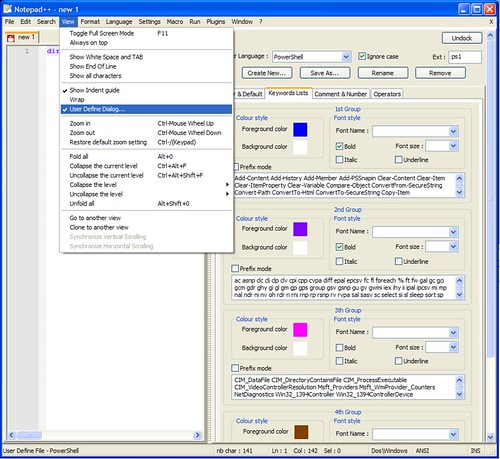
There are four tabs to fill out - Folder (as in code
folding), Keyword, Comment, and Operators. You may have to
dig through the docs for the language you're adding to find
these, but in a lot of cases it's not to hard to get a list
of supported keywords. In the case of PowerShell, you can
get a list of all commands by running the "get-command".
Make sure to set the file extension and language name.
There's no save button, which is a little confusing, but the
changes take effect as you make them and the changes are
saved to the userDefineLang.xml file when you close
Notepad++. If you're just making the changes for your own
use, that's it - you're done. But be a sport and share them,
would you? It's not too hard - you just have to distribute
your changes to the userDefineLang.xml file.
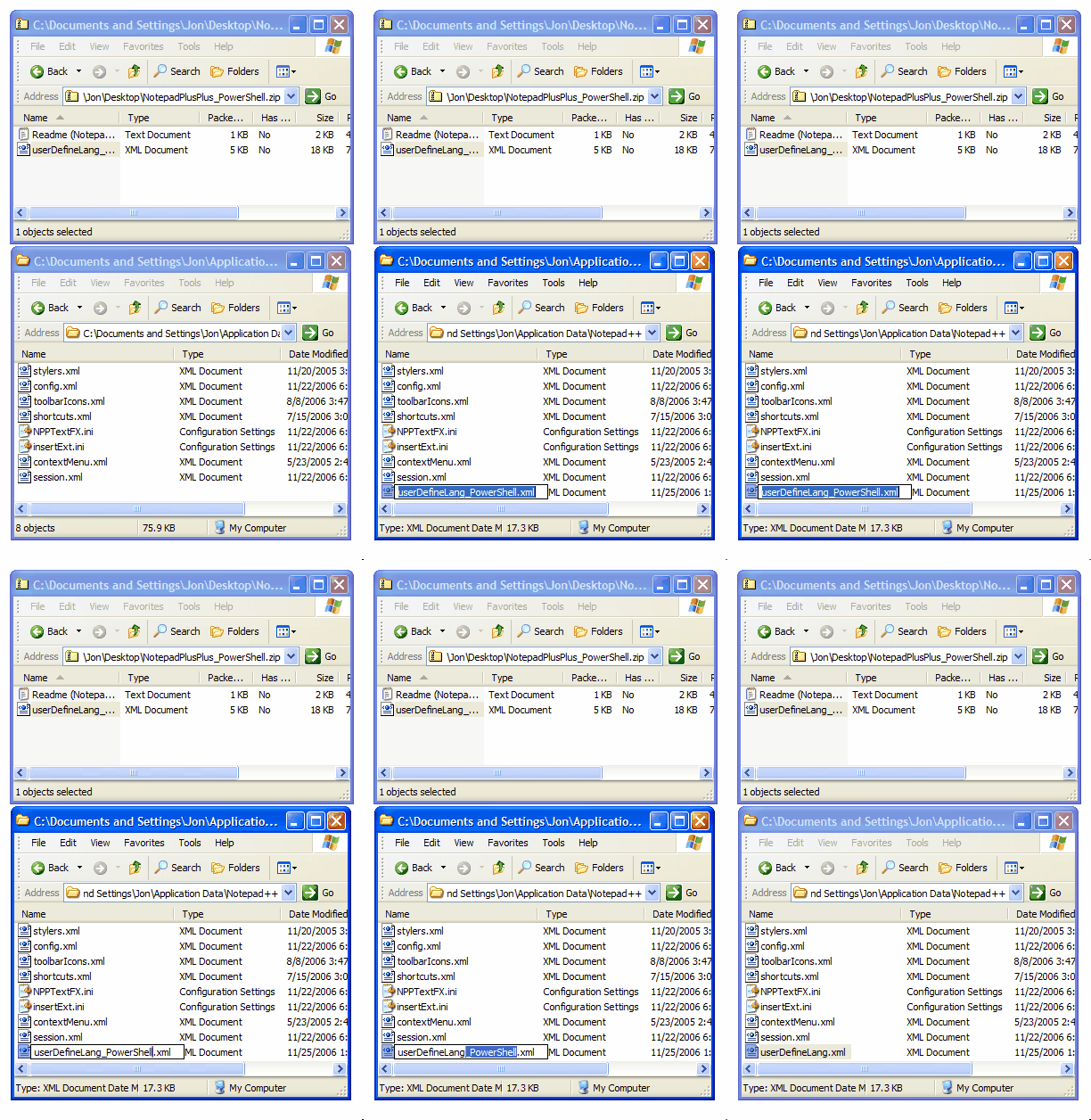
Installing a user defined language file that someone else has written is pretty simple as long as you haven't installed any previously - you just rename the file to userDefineLang.xml and drop it in your %APPDATA%\Notepad++\ directory as pictured below. If you've added other user defined languages, you need to merge the two XML files together. That's pretty bad on the user experience side, but if you're the kind of person who needs two user defined languages, you're a total geek who loves merging XML files anyways.