Roland Weigelt
Born to Code
-
Coming soon... GhostDoc
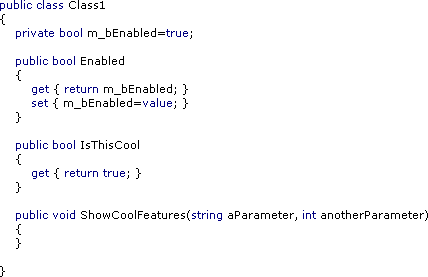
It's pretty late here in Germany, but I cannot go to bed without posting screenshots of the first successful runs of my new VS.Net macro (with a little help from some C# code):
Before:
After:
(Macro called three times)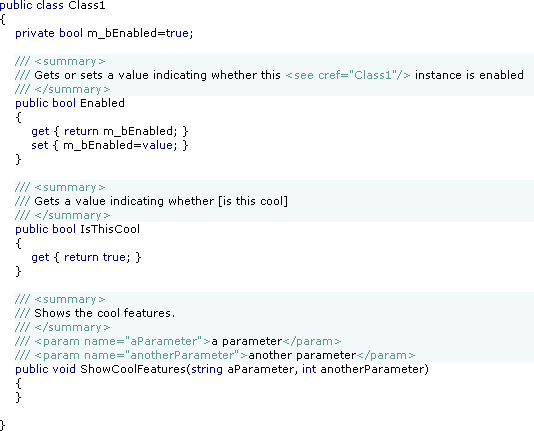
GhostDoc helps writing API documentation by generating the "obvious" parts of the documentation from the identifier names. This is not a replacement for real documentation, but it's a good starting point. The text generation can be customized, here's an excerpt from the configuration file:
<Properties>
    <!-- Default -->
    <Property>
        <summary>
        $$NameAsSentence$$
        </summary>
    </Property>


    <!-- Default for all boolean properties -->
    <Property type="System.Boolean">
        <summary>
        $$Access$$ a value indicating whether [$$NameAsWords$$]
        </summary>
    </Property>


    <!-- Specific definition for the "Enabled" property -->
    <Property type="System.Boolean" name="Enabled">
        <summary>
        $$Access$$ a value indicating whether this $$Class$$ instance is enabled
        </summary>
    </Property>
</Properties>
I'll have a beta ready soon - stay tuned.
-
Personal VS.Net Editor Color/Font Settings (again)
Sometimes after quite some time an old weblog entry unexpectedly starts drawing feedback. So for those who like my VS.Net font and color settings...
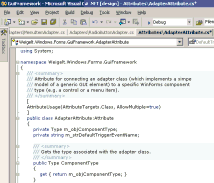
...here's the registy file that I use to transfer my settings when I install VS.Net on a new system. As this registry file may contain more settings than you would like to have changed, please do yourself a favor and backup your current settings by exporting
HKEY_CURRENT_USER\Software\Microsoft\VisualStudio\7.1\FontAndColorsin Regedit before using the registry file. -
Slow "Project Location" Dialog?
If you ever wonder why the "Look in" drop down list in your VS.Net is suddenly extremely slow (hey, I never had any problems, and it worked just fine yesterday...), think about your network drives. A network drive connected to a computer that isn't available can remain unnoticed for days, until you use that drop down list... Simply disconnect the network drive and the problem is gone.
-
Avalon/XAML: Cool, but...
I spent most of the past evening (European Time) reading blogs, soaking every little bit of information about the things to come and I must say that I was as excited as I am when following my favorite basketball team's away games reading text messages on the their home page.
Avalon/XAML sounds like a really good idea to me, but I'm a bit dissappointed that we still seem to be stuck with the same old VB model of "here's the control, it's got an event, there's the event handler". In all the years I have programmed desktop-style applications, it never has been a problem to get a function called when the user clicks on something. What I have been struggling with is the visible/invisible, enabled/disabled logic.
At some point in a developer's life, most either have written or had to maintain a monster application where adding one additional button would mean changing code in many different places just to make sure the view state of the button is correct. Of the different approaches how to solve this problem, I currently favor the use of the command pattern, which I have used successfully in several applications.
The command pattern is only one approach, I'm pretty open for other solutions if they're getting the job done. If Microsoft is all about creating next-gen stuff, I definitely expect an improvement in this area. Because that's where a lot of development and testing time is spent ("if I click here, that button is disabled until you select a list item here, which causes this icon to disappear...")
To those who are at the PDC:
- In the demos, are there examples of handling the view state (visible/enabled) logic? I suspect that demo code is usually limited to "hey, look how I call this method my clicking that button".
- Could somebody please ask about plans for solving this problem?
[For those interested in the command pattern]
In the C#/.NET world, I've seen the use of the command pattern in different variations. There was an article in MSDN magazine 10/2002 (which explained the basic ideas well, but I think the actual library sucked in many ways), and SharpDevelop does use the command pattern, too. (Regarding SharpDevelop, I must admit that I didn't look beyond the public interface of a command, as I wanted the library I was writing at that time to be as clean as possible from other peoples ideas/code. Right now I'm working on the third version of that library; I will release it under a BSD-style license in the coming weeks). -
More Layout with Docking
After my recent articles about visual inheritance (Visual Inheritance - How to escape Layout Hell and Visual Inheritance Revisited) I received some mails in which people asked me about docking and windows forms layout in general. One question was about how to resize elements of a layout proportionally when the form is resized, without calculating lots of coordinates.
Imagine you have a form like this:
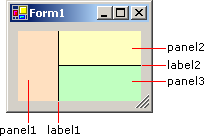
and you want it to resize like this:
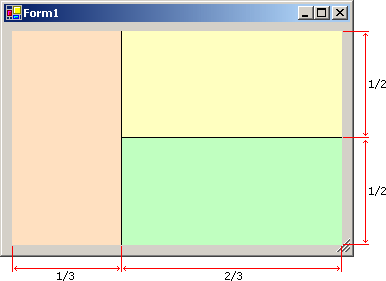
Using docking, this is really easy:
Step 1: Docking
- panel1: Dock left
- label1: Width 1, Dock left
- panel2: Dock top
- label2: Height 1, Dock top
- panel3: Dock fill
(DockPadding.All=8)
Step 2: Handling the form's resize event
protected override void OnResize(EventArgs e)
{
    base.OnResize(e);
    int dx=this.ClientSize.Width - this.DockPadding.Left - this.DockPadding.Right - label1.Width;
    int dy=this.ClientSize.Height - this.DockPadding.Top - this.DockPadding.Bottom - label2.Height;
    panel1.Size=new Size(dx/3,panel1.Height);
    panel2.Size=new Size(panel2.Width,dy/2);
}
You only need to calculate one width and one height - everything else is taken care of automatically by simply docking the layout elements.
-
Visual Inheritance Revisited
- V...I.... What's the "V" stand for?
- Visual.
- What's the --
- Inheritance.
- Ohhhhh........ What was the "V" again?My recent article about visual inheritance generated a lot of positive feedback (at least what I would call "a lot"). In this post, I'll try to answer some the questions I received via email.
Question: How can I reproduce the problems you describe? My first quick test ran without problems...
Create a new Windows Forms application, and add two labels and a button to the form "Form1" (setting the background colors of the labels makes it easier to see what is happening later). Arrange the controls on the form as shown in the following screenshot:
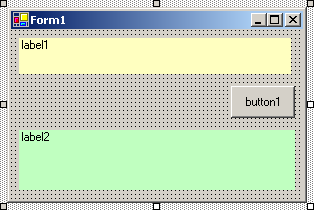
Now anchor the controls:
- label1: Top, Left, Right
- button1: Top, Right
- label2: Top, Bottom, Left, Right
Compile the project, and add an inherited form ("Form2"). The form will look like this:
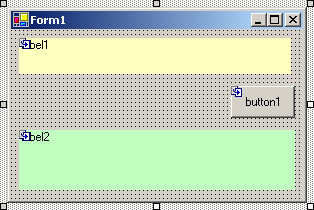
Set the
Textproperty to "Form2". Resize the form and add a button ("button2"):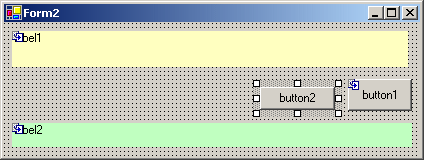
Anchor the button to Top, Right, then compile again.
Be prepared for a surprise: after the project is compiled, you get something like this...
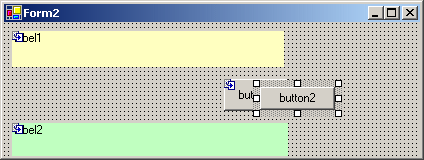
Question: What's the reason for this odd behavior?
Let's take a look at the code of the
InitializeComponent()method of base form:private void InitializeComponent()
{
this.label1 = new System.Windows.Forms.Label();
this.button1 = new System.Windows.Forms.Button();
this.label2 = new System.Windows.Forms.Label();
this.SuspendLayout();...code for the controls...
    //
    // Form1
    //
    this.AutoScaleBaseSize = new System.Drawing.Size(5, 13);
    this.ClientSize = new System.Drawing.Size(292, 169);
    this.Controls.Add(this.label2);
    this.Controls.Add(this.button1);
    this.Controls.Add(this.label1);
    this.Name = "Form1";
    this.Text = "Form1";
    this.ResumeLayout(false);
}
Obviously, this is generated code. When speaking of "serialization" of objects, people usually think of serializing an object to binary data or XML; in this case the object (instance of class
Form1) is serialized to code. This code contains everything that is required to create the layout and the controls ofForm1exactly the way it was specified in the forms designer. Every property is set exact to the required value, e.g. if a panel is docked, not only is theDockproperty set, but also theLocationandSize. So events are neither necessary nor wanted (because of their sheer quantity when settings properties like like e.g.Sizefor each control). This is why basically everything except the creation of the control instances is kept inside the linesthis.SuspendLayout();
and
this.ResumeLayout(false)
The call to
SuspendLayout()temporarily suspends the layout logic,ResumeLayout()turns it back on. The argumentfalsetells the form not to handle pending layout requests, because there's no need to - everything is already laid out as it was designed. So far, everything is ok.Now, what's happening inside the derived class
Form2?In each form class, the constructor of the class calls the method
InitializeComponent(). This method is private, so each class has its own method. When an instance of classForm2is created, the order of execution is- Enter Constructor
Form2() - Enter Constructor
Form1() -
Call
InitializeComponent()of classForm1 - Exit Constructor
Form1() -
Call
InitializeComponent()of classForm2
In the moment the constructor of the base class is left, the layout and the controls are perfect for a
Form1instance - but that's not what we want. The methodInitializeComponent()of classForm2contains the code that is necessary to achieve the desired layout by tweaking the base form and adding the second button. While setting theTextproperty to "Form2" is rather trivial, setting theClientSizeproperty causes serious trouble. The problem is that the size is set while the layout logic is suspended; i.e. the size of the form is changed, but the anchored elements of the base class are not updated.If you're interested, try the following:
- Remove class
Form2 - Save everything, close all windows
- Recompile
-
Create
Form2again (as described above), but don't recompile. - Close the designer window, open the code window
-
Remove the
SuspendLayout()andResumeLayout()statements fromInitializeComponent()in classForm2. - Save and close the window
- Recompile
If you now open
Form2in the designer, the form will be fine. But if you change anything (e.g. move the second button) and recompile, the form will be scrambled again. This is because the code ofInitializeComponent()was generated again - including theSuspendLayout()andResumeLayout()statements. By the way: if you don't put a control on the derived form, the two statements are not generated, and thus the derived form is displayed as expected. This explains why some people at first couldn't reproduce the effects I described in the other article.Question: So why does docking work, but not anchoring?
- Docking tells a control to grab as much space as possible (for top/bottom/left/right: towards to the specified direction) until a border of the container is reached. When the size of the control's container changes, the border is moving, so the docked control will resize itself accordingly.
-
Anchoring tells a control to keep a constant
distance between a specified border
(top/bottom/left/right) of the control and the
corresponding border of the container at all times.
Now if the container is resized while layout is
suspended (which is the case in
InitializeComponent()of classForm2), the anchored control does not notice the change. When layout is resumed, the control will keep the distance that exists at this time. This can be observed if you resize the form either inside the forms designer or at run time. The anchoring works perfectly, but unfortunately using the wrong offsets...
-
I just can't get used to the Command Window
I have been using VS.Net for slightly more than 2 years now, and still there's one thing that really can't get used to: the command window (to be exact: the command window in immediate mode). Maybe it's because it is different from the command window of VB6 (which is more like a C64-style full-screen editor). This is one of those cases where I'm really willing to get used to something but I just can't.
- I want to clear the command window - so what do I do? When I think about doing it, I use the context menu (right click -> popup menu -> clear all). But when I act instinctively, I hit Ctrl-A, Del (which doesn't work)
- I want to copy something from the text in the lines above the current line and use it - not possible without using the mouse, because I cannot move the cursor with the cursor keys. It is a fully understandable design decision to use the cursor keys for scrolling in the command history, but I somehow don't get it. Maybe it's because I don't need items from the command history that much (unlike when I use "cmd.exe" where I don't have a problem with the line-oriented editor).
- I want to clear only parts of the output - not possible. That can be very frustrating.
Is it just me? Am I getting inflexible? Am I missing some option I can switch? Or did somebody write an addin for VS.Net?
-
Just for Fun: Simple Control for Terminal-style Output
The other day I was playing around with the RichTextBox, learning how to use this control. One of my experiments produced the effect of text being displayed on an old terminal, character by character.
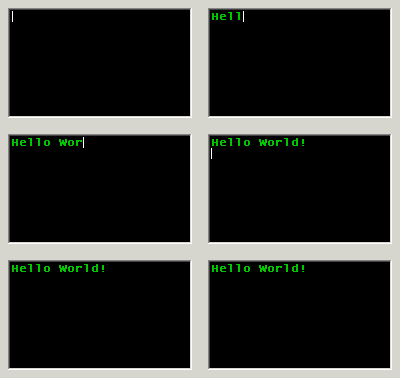
Now I've wrapped this code in a simple control. Please don't ask me what it can be used for. Maybe for an "About..." dialog. I don't even know what I will do with it. It's just that from time to time I have to write some useless fun stuff to relax a little ;-).
You can download the code (VS.Net 2003) here; an example project is included so it's just "unzip, open solution, hit F5".
The
Write()andWriteLine()methods are used for adding text to the output,ClearScreen()empties the output area. The control can be customized using the propertiesBackColor,ForeColor,FontandCharactersPerSecond. -
Visual Inheritance - How to escape Layout Hell
Visual inheritance (VI) is a very powerful feature; unfortunately, some of the more tricky bits are not that well-documented. A lot of things can go terribly wrong (like controls moving themselves to unexpected locations), as I had to learn the hard way in the last weeks. But if you follow a few simple rules, VI does work reliably.
First a short introduction for those who haven't looked into VI yet (actually, it took me some time to really discover VI). In C# (and other .NET languages) forms and controls are no longer "magic" things (like e.g. in VB6) but simply classes derived from special base classes (e.g. System.Windows.Forms.Form). Such a class can in turn be used as the base class for another class; if a base form contains controls, the derived form inherits them. Again, there's nothing magical to this all; when looking at the code (or better: single stepping through it), it's pretty obvious how VI works. The constructor of each form/control class contains a call of a private method "InitializeComponent()". If B is derived from A, then the constructor of A is called first (thus "InitializedComponent()" of A), then the constructor of B (and "InitializeComponent()" of B).
VS.NET directly supports VI, i.e. it is possible to edit a derived form (or user control) in the windows forms designer. By default, "editing" a derived form means adding additional controls. This is because controls added to a form are marked as "private", i.e. they are not accessible from a derived class. Again, as we're simply dealing with classes, it's just a matter of changing the access specifier to e.g. "protected". Inside the forms designer, this can be done by changing the control's "Modifiers" property.
Here's a typical example for visual inheritance: Imagine you want to have a nice looking header on all of your dialog windows, maybe something like this:
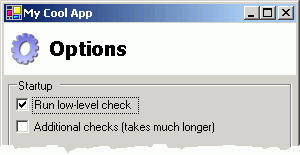
With VI, you define a base class for all your dialogs, containing the header (a panel docked to the top, with a picture box for the image and a label for the text). You then define two properties on the form for setting the icon and title text:
public string TitleText
{
    get { return m_lblTitle.Text; }
    set { m_lblTitle.Text=value; }
}
public Image TitleImage
{
    get { return m_picTitle.Image; }
    set { m_picTitle.Image=value; }
}
If you derive a form from this base class, your derived form will automatically feature the header defined in the base class; using the two properties, the header can be customized. Cool, huh?
This is usually the point where articles describing visual inheritance stop, leaving out some of the really important questions:
Question: How do I make sure the controls on the derived form are positioned correctly if the size of the header changes?
Define a panel on the base form below the header and make it accessible from the derived form by setting its access specifier to e.g. "protected". Set "Dock" to "Fill". In your derived form, you drop your controls into this panel. If the size of the header changes, the controls will be repositioned automatically, as they are positioned relative to the upper left corner of the panel they live in.
DON'T position the panel manually and set the anchor to "Top, Bottom, Left, Right". This will not work correctly if the size of the derived form differs from the size of the base form.
Question: But I want to define specific areas for the controls on the derived form - how do I do this without using anchors?
Use nested panels and the "DockPadding" property. The following image shows a base form with two panels to be used in derived forms (panels #3 for buttons like OK and Cancel, and #5 for all other controls):
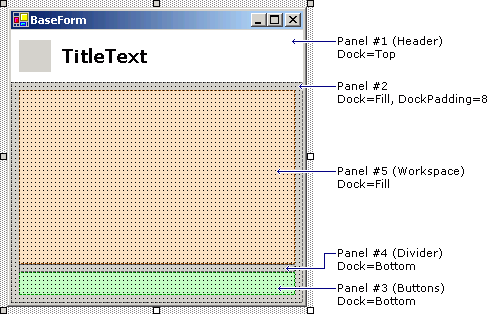
Of all the panels, only #3 and #5 are set to "protected", the remaining are set to "private".
Question: What is so bad about anchors?
As a rule of thumb, use anchors other than "Top, Left" only on forms/controls that are not used as the base for other forms/controls. This is because the layout of anchored controls will not be updated if the size of the derived form/control is changed in the "InitializeComponent()" method of the derived class. If the form is resized later, things are Ok. This is one of the reasons why this problem sometimes remains unnoticed until some time later, when suddenly VI seems to be broken.
Question: But I can fix it by making the controls "protected"?
Yes and no. First of all, if form A contains a control X that is anchored, and form B is derived from A and has a different size, then setting X to "protected" fixes the problem only for B, but not for a form C derived from B. And under some circumstances there still seem to be some problems left even in B (I didn't invest too much time into researching this, though)
From a OOD point of view, making lots of controls accessible from derived classes only to fix layout problems isn't such a good idea, anyway. If your base form contains e.g. a list, then it's better to offer only the concept of a list through properties, methods and events, but not the actual listbox control. If you decide to switch to a dropdown list or a listview at a later time, you don't have to touch the code in the derived classes.
Question: How do I position OK and Cancel buttons in the lower right corner without a gazillion nested panels?
A lot of layout can be done with surprisingly few panels. Of the panels shown in the image shown above, the divider panel is actually not necessary (I just added it to make things a bit easier to understand in the first step). The secret is the right combination of docking and dock padding. Take a look at this:
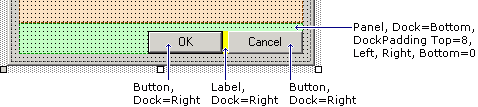
The buttons are 23 pixels high, the padding at the top is 8 pixels, so the height of the panel was set to 31 pixels.
Question: But what about more complex layouts?
From my own experience, if you have a base form with a complex layout, something already went wrong in the (non-visual) design of your code. Note the word "base": On a normal form e.g. for data entry, a complex layout is nothing unusual or even bad. But if you have a base form, you want to reuse something on that form - if this "something" is too complex, it should be encapsulated in a user control. User controls are a powerful tool for reducing the complexity of layout and code. Most layouts can be broken down to a few user controls which in turn can be positioned easily using docking and dock padding. And it's not a secret that code definitely benefits from dividing it into smaller units.
If you know that your user control will not be used as the base for another control (you could make it
sealedas a reminder), you can again use anchoring. Here's the funny part: You can use anchoring inside a control that lives on a form that in turn is used as the base for another form. But of course, you cannot use anchoring to position the user control on the base form.Conclusion
- Don't use anchoring on forms or (user) controls you want to use as the base for other forms/controls
- Look at what you can achieve with panels, docking and dock padding
- Reduce complexity by using user controls (you may want to read a bit about user controls here).
Update (28.10.2003)
Since the original post, I have written two follow-ups that may be of interest for developers using VI and/or docking:
- Visual Inheritance Revisited (more detailed information about VI) and
- More Layout with Docking (not VI-related)
-
Find (Wouldn't it be cool, part 3)
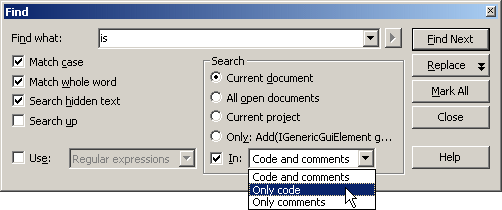
Each time I'm searching my source code for the word "is", I wish VS.Net had something like this: