Roland Weigelt
Born to Code
-
GhostDoc is RTM (or is that RTRAC?)
(RTRAC = Released to Roy's Addin Contest ;-)
23:49 the mail with my contest entry GhostDoc left my outbox.
I'm exhausted. Several nights of only 4 hours sleep are taking their toll. Mostly addin related problems, stuff not working that worked perfectly for weeks. COM registration issues, you name it.
I had to cut features, there are things that could have been better, but that sucker is out the door.
I feel satisfied.
-
Crunch Mode
I'm busy putting the final touches on GhostDoc for entering it here:

Testing, cutting features, testing, writing release notes, testing, fixing last minute bugs, testing, ...
Hmm. Some parts of developing software a more fun than others... ;-)
-
Cool Google Search Macro for Visual Studio
Marty Garins wrote a really cool macro for performing a Google search from Visual Studio.
See the feedback section of that blog entry for a minor addition I proposed (urlencoding of the search text). By the time you are reading this, it may already be included in the macro code.
Tip: If you want to limit your search to the MSDN site, add the red text to line building the URL string:
Dim url As String = String.Format("http://www.google.com/search?hl=en&ie=UTF-8&q=site%3Amsdn.microsoft.com+{0}", selectedText) -
Strange: GetProcessesByName and Floppy Drive Access
Here's something strange: Each time I call the method Process.GetProcessesByName my floppy drive is accessed, which is rather annoying especially if no disk is inserted.
If you want to try it yourself, here's the code for a minimal command line app:
using System;
using System.Diagnostics;
class GetProcessesByNameDemo
{
    static void Main(string[] args)
    {
        Process[] arrProcesses=Process.GetProcessesByName("notepad");
    }
}
A search on Google Groups for "getprocessesbyname floppy" shows (at least at the moment of writing these lines) that I'm not the only one with this problem; unfortunately I could find neither an explanation nor a solution.
So.... anybody out there knowing more about this strange behavior?
-
My Transition from Fixed to Proportional Width Fonts for Editing Source Code
I always find it interesting to look at source code I wrote years ago. Old dot-matrix printouts (BASIC and Z80 Assembly code from the 80's...) found in a drawer while searching for something else. Or source files in some remote "OldStuff" folder on my storage hard drive.
These old sources bring back lots of memories and it's nice to see the evolution of my personal style, which shows several cycles of first changing only gradually for some time, then suddenly getting a visible boost after being exposed to new concepts and ideas.
One thing that really amazes me in my source files back from the 90's is the amount of time wasted on formatting and indentation (sometimes up to the point of thinking "wow, did I do that?"). I'm speaking of things like comment headers for methods:
/******************************************************
 * Method:    CreateItem
 * Purpose:   Creates a new foobar item using the
 *            specified ID
 * Parameter: id = ID of the item
 * Returns:   created item
 ******************************************************/
Or end-of-line comments. Often I can literally see code statements and comments fighting for space, with the comments eventually losing and being split to two or more lines:
splurbyUpdateBits=noobahFlags & pizkwatMask; // a comment explaining what
                                             // this line is all about,
                                             // spanning several lines
And another waste of time: lining up variable names and comments in declarations:
int      n=0;     // A comment
SomeType theItem; // Another comment
A few years ago I started experimenting with proportional fonts for the source code editor, being inspired by screenshots of Smalltalk and Oberon systems I saw in magazines. After finding out that Verdana (unlike Arial) is well-suited as a developer's font, displaying the uppercase I, the lowercase L and the pipe symbol differently, I forced myself to use this font for a while.
The increase in readability was amazing (especially for long identifiers), but my exisiting source code was a mess when viewed in the editor - all elaborate formatting using tabs and spaces was gone. Not wanting to go back, I had to adjust my commenting and formatting style:
- I chose a less elaborate design for comments headers (which I won't reproduce here as it was C/C++ specific; now using C# with its XML documentation comments I never felt the need for exactly lining up anything)
-
Wrapping end-of-line comments was no longer an
option. Sure, you can line up the comments in
your editor using tabs, but in
other people's editors (using a different
font) the result is unpredictable. So I reduced the
need for EOL comments
- by moving some information to section comments that explain the intention of several code lines, and
- by writing better code (yeah I know, d'oh!), as long EOL-comments usually are an indicator for bad/complicated parts
- I simply stopped formatting variable declarations. Maybe it was a nice thing to do in plain C, but in C++, Java and C# long lists of variable declarations are much less common anyway. What benefited most from lining up were the end-of-line comments behind variable names. But with the switch to a proportional editor font (supported by the Intellisense feature) the length of my variable names grew considerably, and with more expressive names, most comments were no longer required. Now, the few remaining comments don't need to be lined up.
I'm now using a proportional editor font (Verdana 8pt) for quite some time and I wouldn't voluntarily change back to a fixed-width font. At the same time it must be noted that the transition may not be without problems, depending on your current personal style. But I can definitely recommend giving it a try.
-
GhostDoc Progress
After a pretty long break from working on GhostDoc I'm now back on track. My goal is to have a release ready for entering Roy's add-in contest and now that the deadline has been moved to June 30, I'm pretty sure I can make that happen.
-
Sometimes it's Better to Check Even Really Obvious Dialog Defaults
If you only have a C# project file named e.g. "foobar.csproj" in a directory, opening it in the Visual Studio IDE (VS.Net 2003) will create a solution file for you. Either when saving or exiting you'll be asked for the file name, with the default name being e.g. "foobar.sln".
After being asked for solution file names over and over again, I never looked at the default name again - I simply hit Ok as soon as the dialog popped up.
Tip: You shouldn't do this if your project filename contains a dot. Because for a project named e.g. "foo.bar.csproj", the default name of the automatically generated solution file is "foo.sln", not "foo.bar.sln" as one would expect. For "X.Y.Z.csproj" the default name is "X.Y.sln", for "A.B.C.D.csproj" the default name is "A.B.C.sln", and so on.
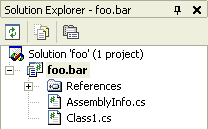
In contrast, if you create a new project from scratch, the solution name is the same as the project name, even if the project name contains a dot.
-
Don't Underestimate the Benefits of "Trivial" Unit Tests
Take a look at the following example of a trivial unit test for a property. Imagine a class
MyClasswith a propertyDescription:public class MyClass
{
...
private string m_strDescription;
public string Description
{
get { return m_strDescription; }
set { m_strDescription=value; }
}
...
}And here's the accompanying unit test:
    ...
    [ Test ]
    public void DescriptionTest()
    {
        MyClass obj=new MyClass();
        obj.Description="Hello World";
        Assert.AreEqual("Hello World", obj.Description);
    }
    ...
Question: What's the benefit of such a trivial test? Is it actually worth the time spent for writing it?
As I have learned over and over again in the past months, the answer is YES. First of all, knowing that the property is working correctly is better than being "really, really sure". There may not be a huge difference in the moment you write the code, but think again a couple weeks and dozens or hundreds of classes later. Maybe you change the way the property value is stored, e.g. something like this:
    public string Description
    {
        get { return m_objDataStorage.Items["Description"]; }
        set { m_objDataStorage.Items["Description"]=value; }
    }
Without the unit test, you would test the new implementation once, then forget about it. Now another couple of weeks later some minor change in the storage code breaks this implementation (causing the getter to return a wrong value). If the class and its property is buried under layers and layers of code, you can spend a lot of time searching for this bug. With a unit test, the test simply fails, giving you a pretty good idea of what's wrong.
Of course, this is just the success story... don't forget about the many, many properties that stay exactly the way they were written. The tests for these may give the warm, fuzzy feeling of doing the "right thing", but from a sceptic's point of view, they are a waste of time. One could try to save time by not writing a test until a property's code is more complicated than a simple access to a private member variable, but ask yourself how likely it is that this test will be written if either a) you are under pressure, or b) somebody else changes the code (did I just hear someone say "yeah, right"? ;-). My advice is to stop worrying about wasted time and to simply think in terms of statistics. One really nasty bug found easily can save enough time to write a lot of "unnecessary" tests.
As already mentioned, my personal experience with "trivial" unit tests for properties has been pretty good. Besides the obvious benefits when refactoring, every couple of weeks a completely unexpected bug gets caught (typos and copy/paste- or search/replace mistakes that somehow get past the compiler).
-
XML Documentation Comment Tooltips (Wouldn't it be cool, part 5)
While I do write XML documentation comments for all my code (except throwaway stuff), I rarely actually read e.g. the CHM file generated by NDoc. But as we all know, a cool feature of VS.Net is that the content of XML documentation comments is used in various situations to display tooltips, which may look something like this:

Unfortunately, if users of my code (i.e. either other developers, or me after a couple of weeks) read only the tooltips, they may miss valuable information, e.g. descriptions of return values or remarks. The problem is that there's no way to tell whether additional information is available, so one usually assumes that it is not -- especially if you have looked a couple of times into a CHM documentation file for a specific topic only to be disappointed.
So I think it would be a cool feature if tooltips could display more information, maybe like this:
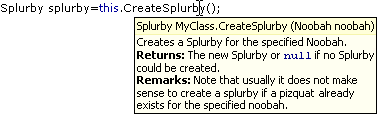
Of course the texts should be truncated to a reasonable maximum size (in order to avoid something like the sometimes screen-filling tooltips of the NUnit GUI ;-).
Other "Wouldn't it be cool" posts:
- Wouldn't it be cool...? (about editing XML documentation comments
- Intellisense (Wouldn't it be cool, part 2)
- Find (Wouldn't it be cool, part 3)
- XML Documentation Comments (Wouldn't it be cool, part 4) (doc comments e.g. for interface implementations).
-
Selecting String Literals in the VS.Net Editor
A colleague stumbled across this feature of the text editor by accident:
Move the mouse cursor on the opening quote character of a string literal:

Double-click and the whole string literal will be selected:

Pretty cool.